User Story
User Story can be found in the AGIS Classic Mode, under Knowledge Base. User can view, sync, import/update, remove, Upload, search, or filter for a specific User Story
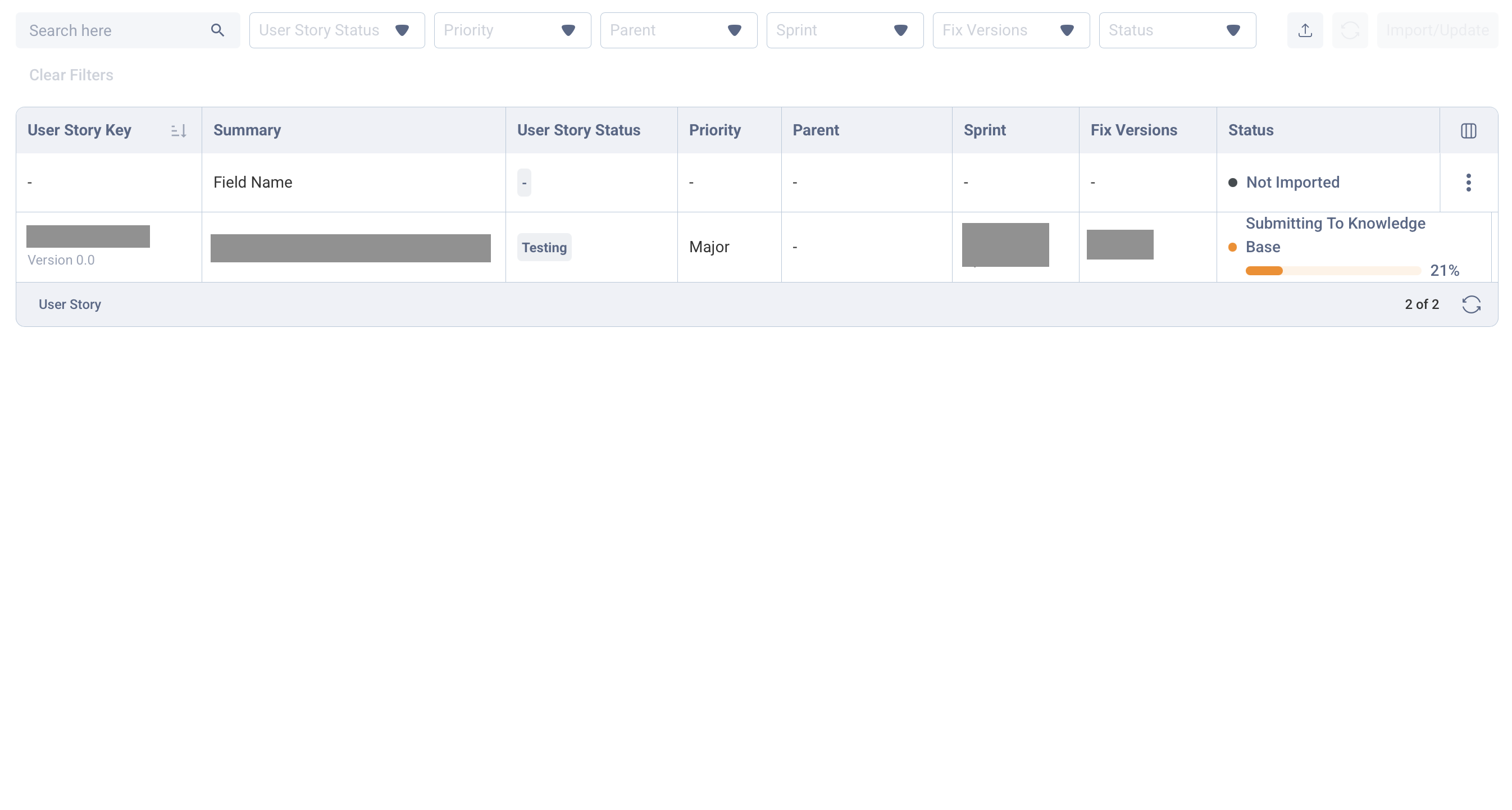
| Column | Description |
|---|---|
| User Story Key | The ticket's ID in the source system, for example PROJ-123. Click it to open the original ticket in a new tab. If the integration is disconnected, the ID is plain text instead of a link. |
| Summary | The ticket's title. |
| User Story Status | The ticket's status in the source system, not in AGIS. |
| Priority | The ticket's priority in the source system. Shows - if it has none. |
| Parent | The item the ticket belongs to in the source system, such as its epic. |
| Sprint | The sprint or sprints the ticket is assigned to. |
| Fix Versions | The release version or versions the ticket is planned for. |
| Status | Status in AGIS. Not Imported, Uploading, Pending Content Review, Ready, Extraction Failed, Extracting Cancelled, Extracting |
| Action | A shortcut to the next step, depending on the story's status: Review Process when it is waiting for review, Cancel Process while it is being extracted, generated or submitted, and Retry when a step has failed or been cancelled. |
Search and Filtering
User Story features search and filtering controls. Users will be able to do keyword-based lookup and filtering based on User Story Status, Priority, Parent, Sprint, Fix Versions, and Status
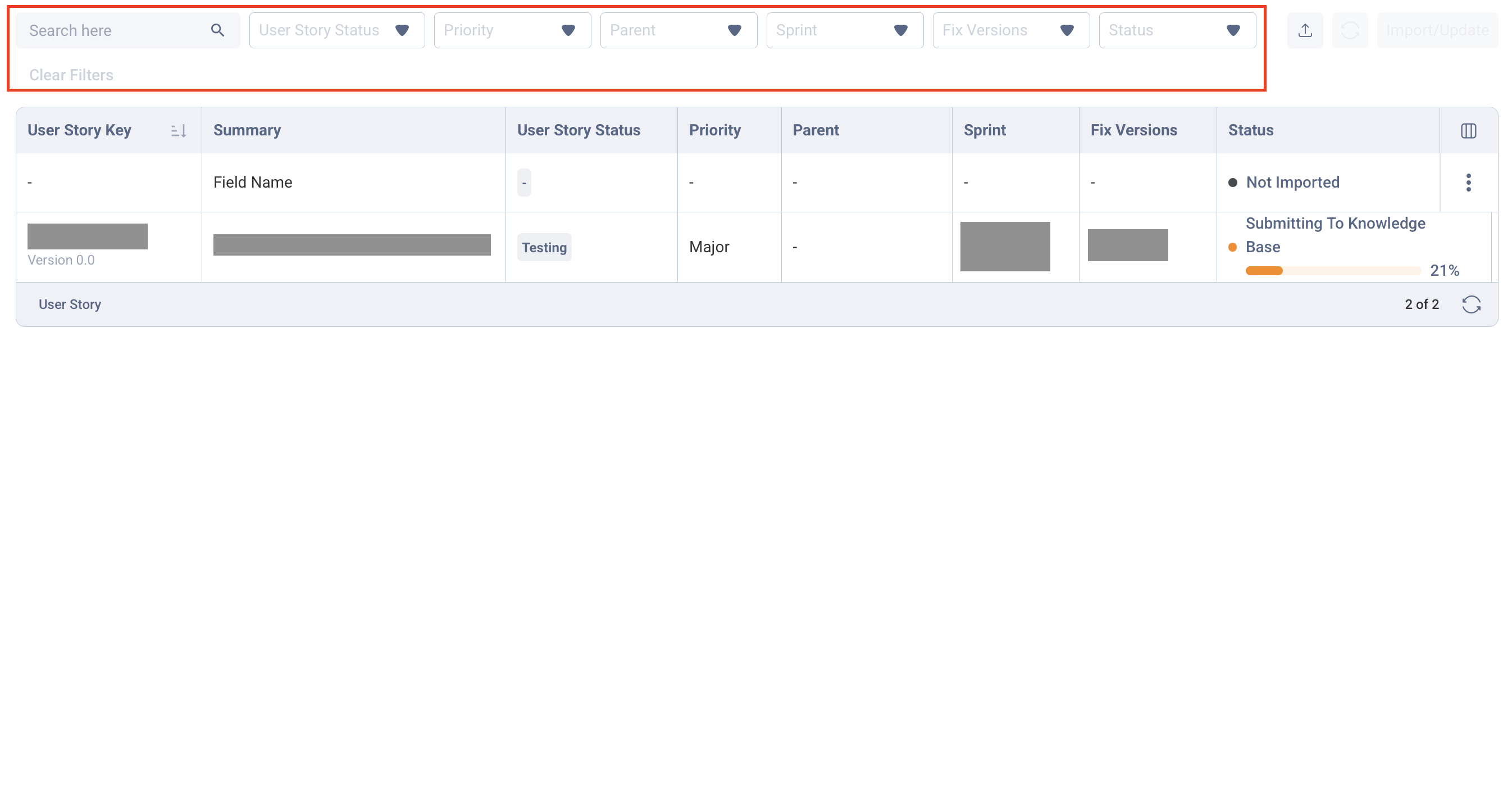
Clear Filters will clear any search done and filters applied.
Check for Updates
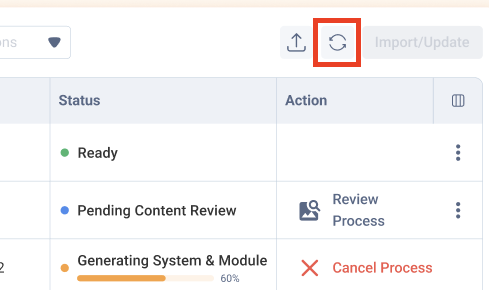
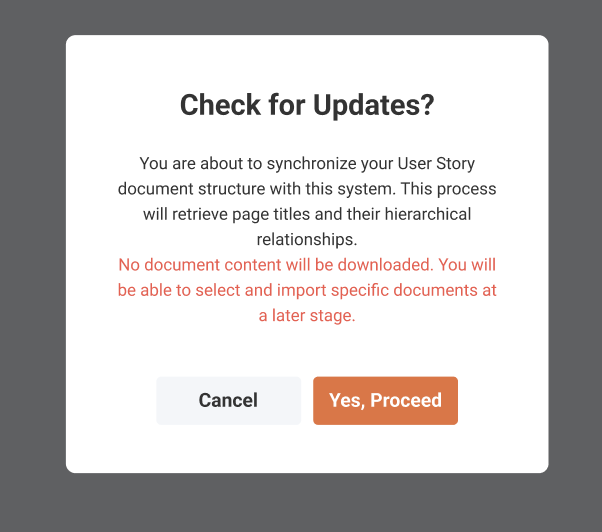
On the right-side of the screen, a sync button can be found. Clicking on the button and confirming the modal will fetch the tickets list from the user story document source.
Import/Update
Before importing or updating documents, users must first Check for Updates. Afterwards, users may select one or more documents by marking the checkbox beside each document, then import the selected User Story documents.
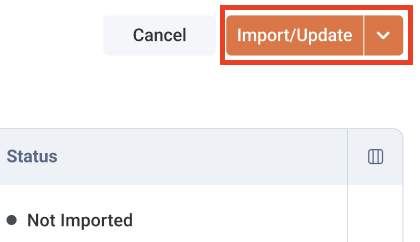
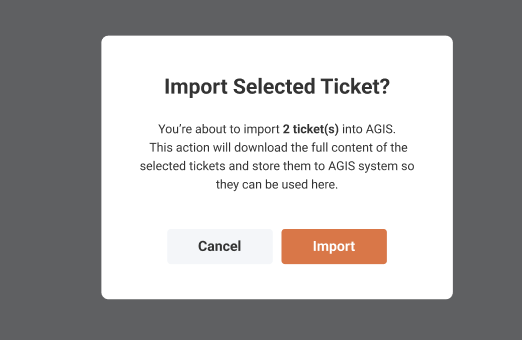
If a selected document has already been previously imported, then it will be updated instead.
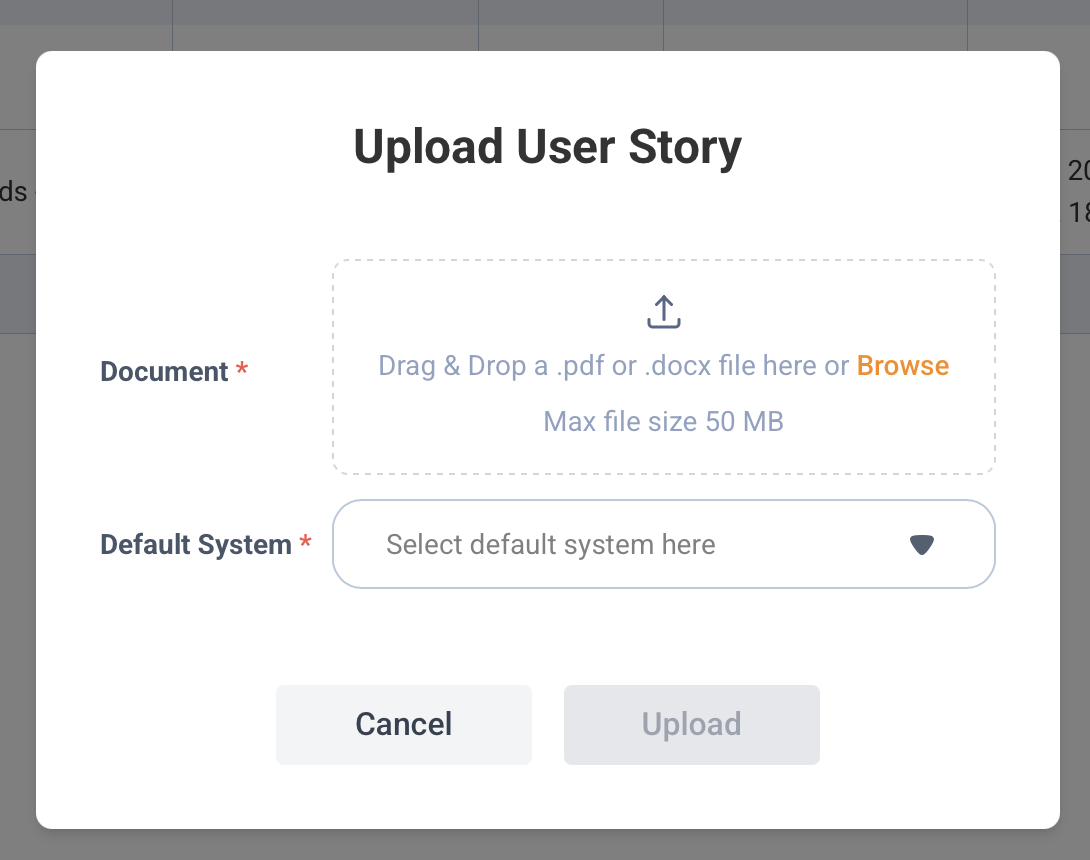
User can also upload a user story manually by clicking the Upload icon.
Remove a User Story
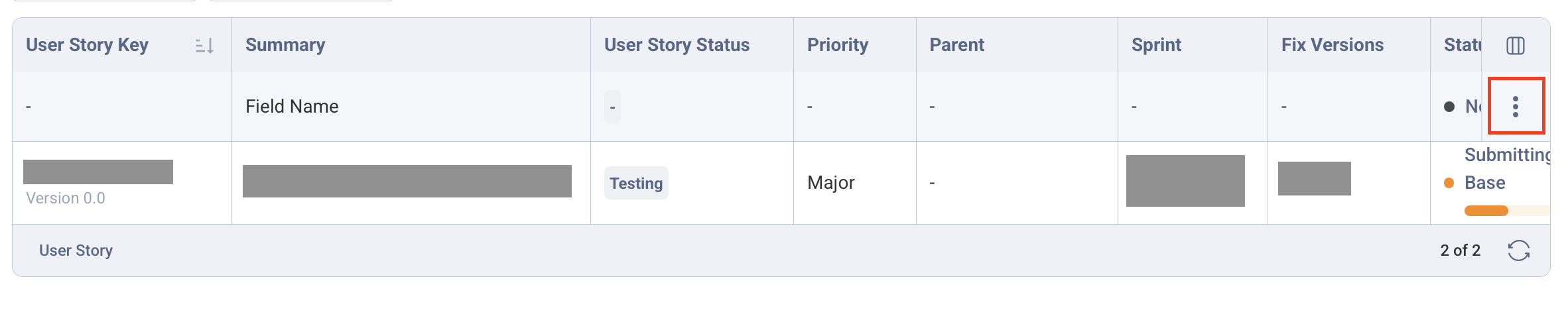
To remove an imported story, open its row menu, click Remove from AGIS and confirm with Delete. This removes only the story's copy in AGIS. The ticket in Jira or Azure DevOps is not affected.
Content Review
When importing a user story document, user will need to do Content Review before it is flagged Ready. In Content Review, user can review, mark a node as essential, and flag a node as Reviewed.
For more info and the full steps, see Content Review on Review Content as it works the same way. For Jira Cloud and Azure DevOps, the left side shows the ticket as a web page, so users can't draw a node on it.
